안녕하세요.
외부 API로 로그인을 구현해 봅시다.
우선, 애플은 외부 로그인을 구현하려면 반드시 Apple로 로그인 기능을 넣어야 한다고 합니다.
버튼의 타이틀과 컬러에 대한 제약도 모두 설정해 두었기 때문에 애플이 시키는 대로만 하면 됩니다.
https://developer.apple.com/design/human-interface-guidelines/sign-in-with-apple/overview/buttons/
Buttons - Sign in with Apple - Human Interface Guidelines - Apple Developer
Buttons Apple provides several Sign in with Apple buttons you can use to let people set up an account and sign in. If necessary, you can create a custom button to offer Sign in with Apple; for guidelines, see Creating a Custom Sign in with Apple Button. Pr
developer.apple.com
로그인 버튼을 만들기 위한 사전 작업부터 해 볼까요,
https://developer.apple.com/account/resources/certificates/list
로그인 - Apple
idmsa.apple.com
프로젝트를 생성하고, 위의 링크에서 좌측 메유에 있는 Identifiers를 들어가서 +버튼을 누릅니다.
(프로젝트에 이미 Identifiers가 등록된 경우에는 생략이 가능하니, 바로 Key발급 을 받으시면 됩니다.)
추가 버튼을 누른 후 후, App IDs에 체크하고 Continue 합니다.

그 후,
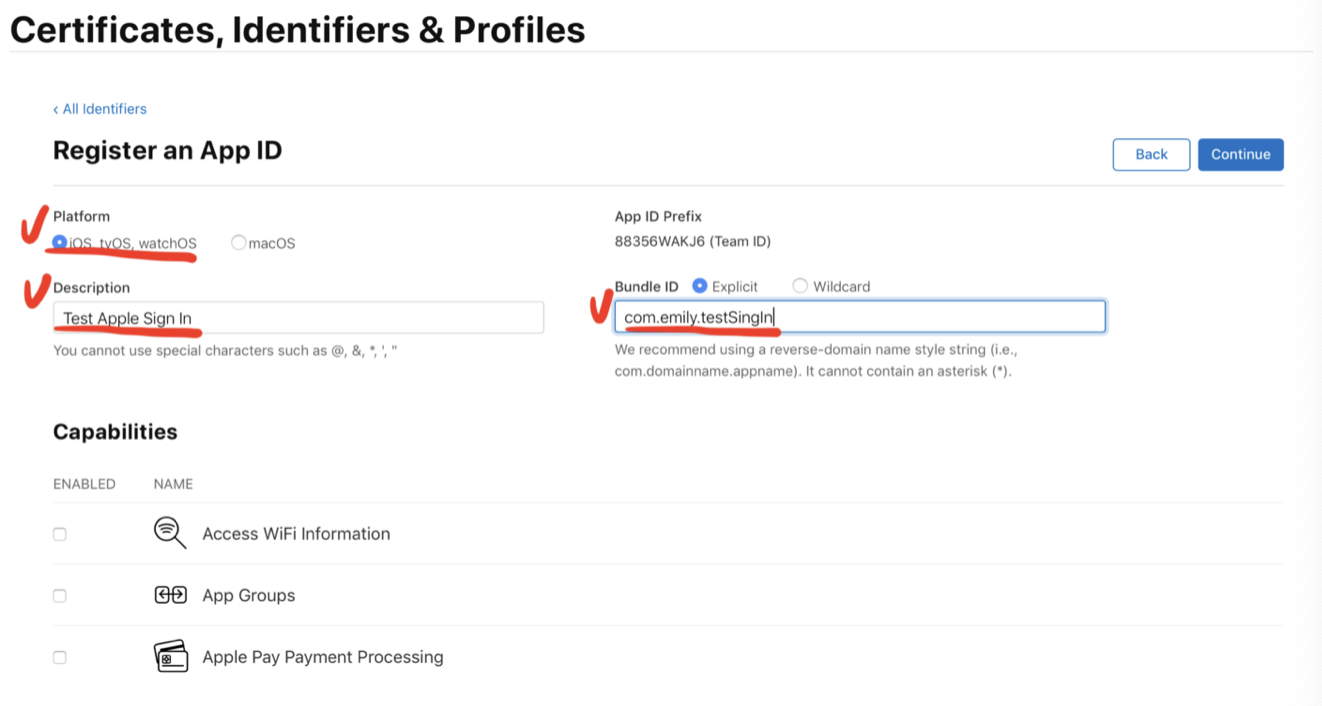
Platform은 iOS
Descirption에 적절한 설명
Bundle ID에 프로젝트의 Bundle ID를 넣습니다.
아래쪽에 있는 Sign In with Apple에 체크
우측의 Enable as a primary AppID를 확인하고, Continue 버튼을 누릅니다.
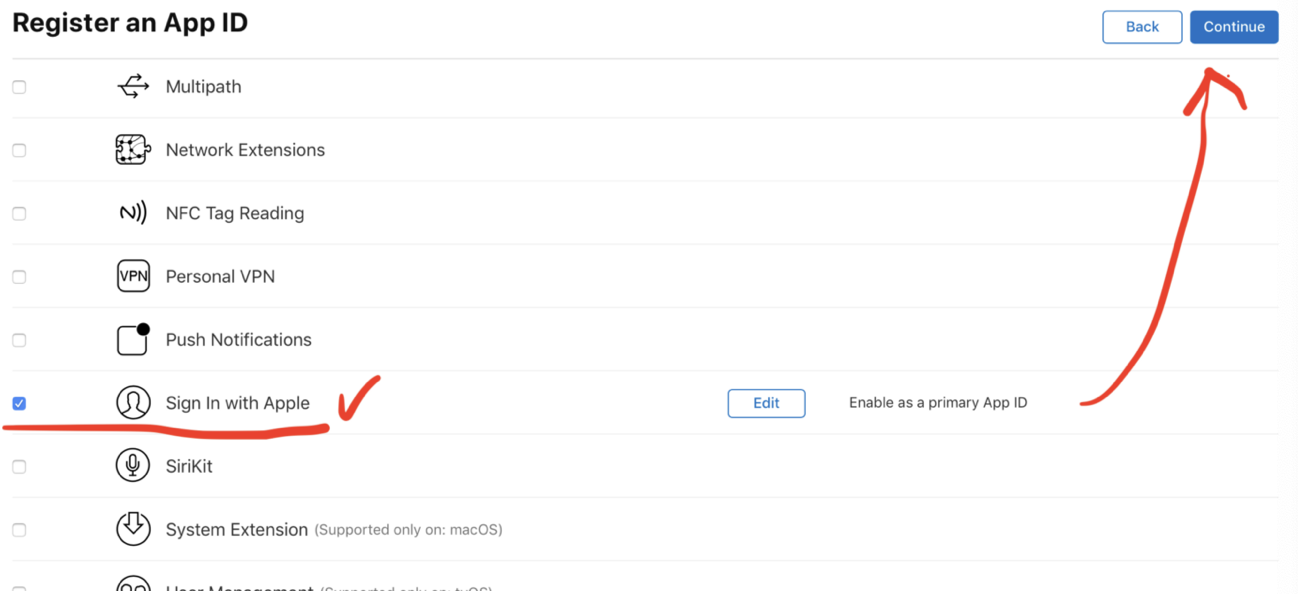
이제 Register!

여기까지 하면 Identifier에 추가가 완료 됩니다.
이제 Keys에 추가해보겠습니다,
Identifier와 마찬가지로 Keys에서 +버튼을 누릅니다.

KeyName입력, Sign in with Apple 체크, Configure활성화 되면 클릭

Configure Key에서 App ID를 선택합니다. (Identifier 등록해야 확인이 가능합니다.)
이제 Save하고 이전 화면으로 돌아와서 Continue 클릭

이제 Register 클릭
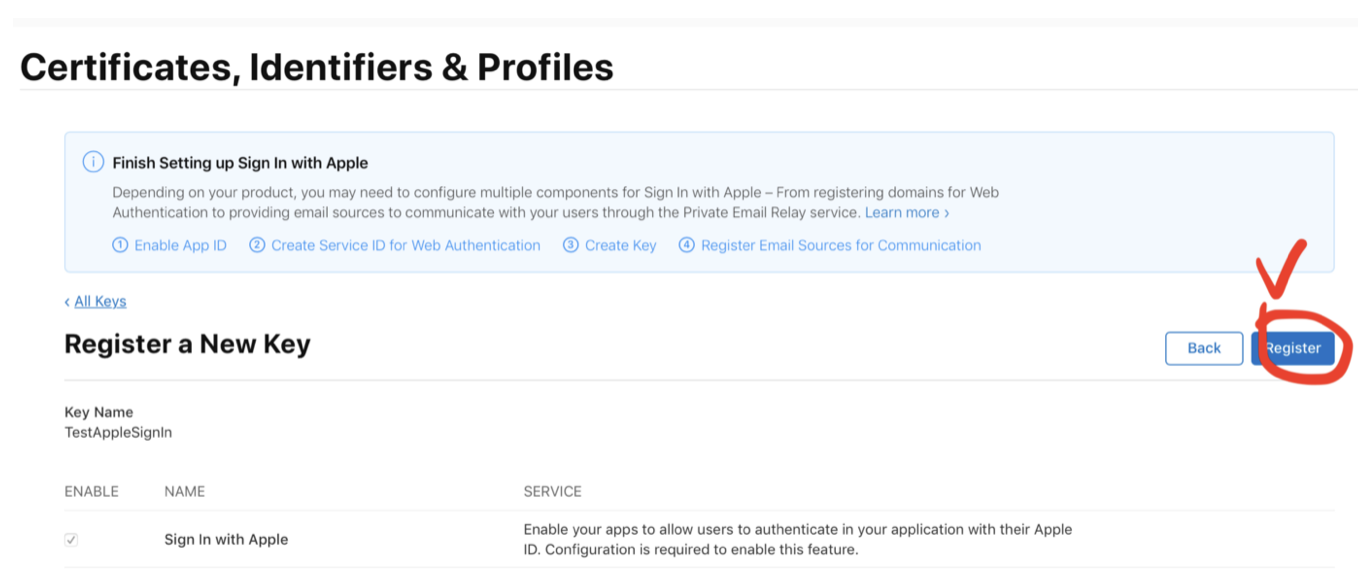
Download로 마무리

프로젝트의 SIgning & Capabitilies에서 +Capabilities에서 Sign in with apple을 검색해서 추가합니다
(Signing Certificate Apple Development는 xcode상단의 simulator가 mac로 선택되어있으면, 오류가 나네요)
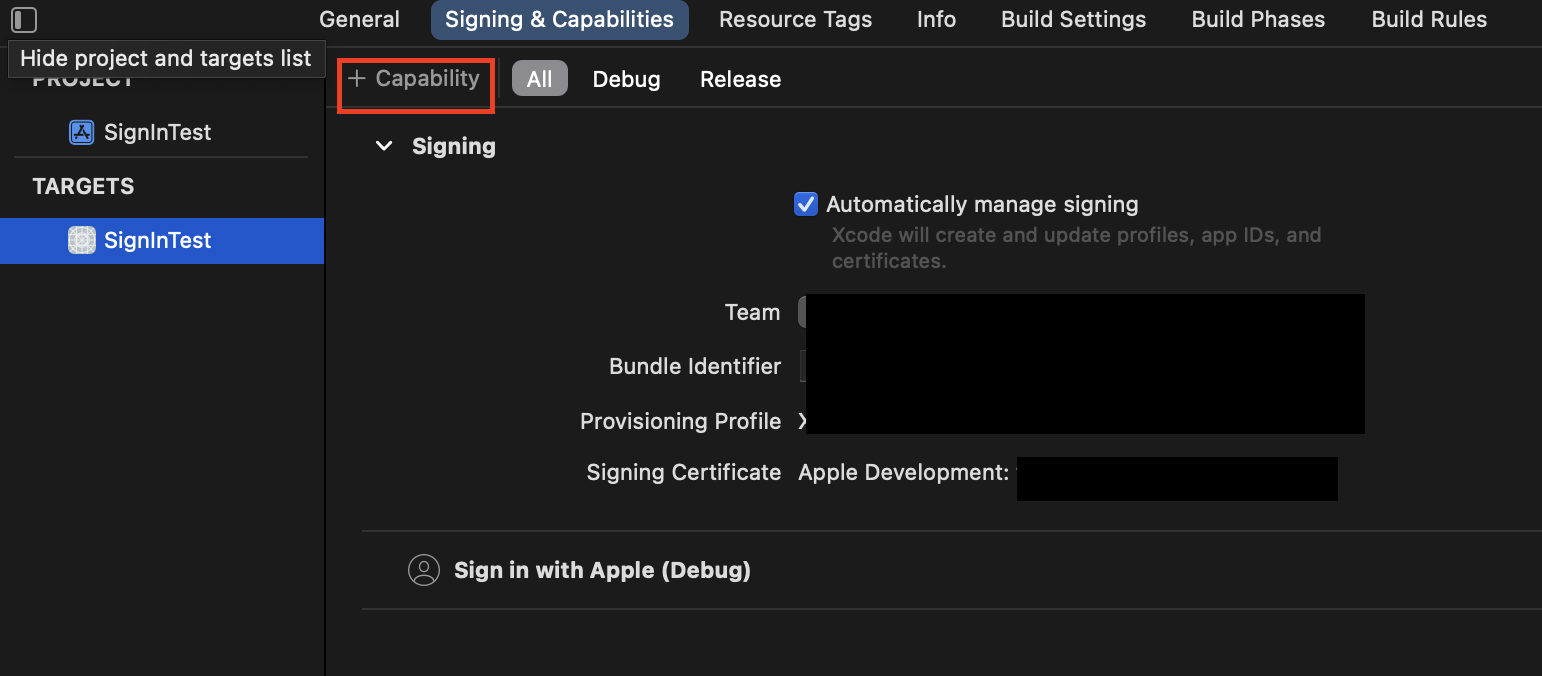
사전작업은 끝났습니다. 다음편에서 버튼을 만들어볼게요
'iOS' 카테고리의 다른 글
| [swift]동시에 두 개의 ViewController dismiss (0) | 2021.11.22 |
|---|---|
| [iOS] 카카오 로그인 - 1 (0) | 2021.11.16 |
| xcode13, 사라진 info.plist (0) | 2021.10.04 |

